Remote GUI for Beaglebone Black with PyQt5 and X11 Forwarding
Lately I found a Beaglebone Black in my stock and had
the idea to use it for some kind of fermentation control with a graphical user interface
(GUI). For testing purposes I first wanted to run a small GUI on the Beaglebone via
remote control (SSH). SSH has this great -X switch that enables X11 Forwarding. So I
wanted to use this from my Mac to remote control the Qt GUI on my Beaglebone. Here is
how I did it.
First I needed to install XQuartz on my Mac. XQuartz is an
open-source version of X.Org X Window System for OS X. Once
installed we can ssh into the Beaglebone and use the -X switch to enable X11
forwarding.
ssh -X root@192.168.7.2
On the Beaglebone we want to use Python 3 with PyQt5 (which is a Python port of the Qt framework). So we might need to install both.
$ sudo apt-get update
$ sudo apt-get install python3 python3-pip python3-pyqt5
Also we want Adafruits BBIO package to control the Beaglebone GPIOs via Python.
$ sudo pip3 install Adafruit-BBIO
And we need the X11 libraries and the X11 Server which we install with the xorg package:
$ sudo apt-get install xorg
Now we've got everything we needed an can write a little python script that allows us to
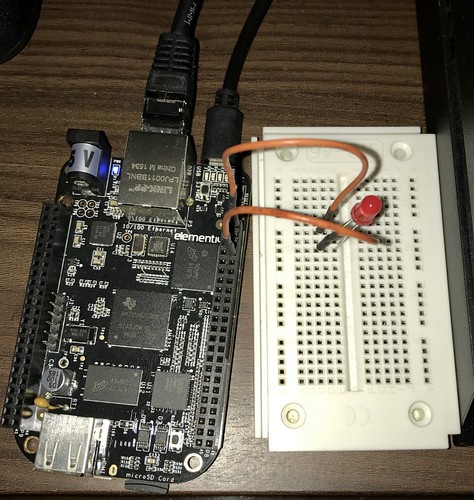
switch a LED connected to GPIO_67 which is PIN 8 on Port 8. See the BBB Pinout
here. We create a new file app.py
containing the following Python code.
app.py
import sys
from PyQt5.QtWidgets import QApplication, QWidget, QPushButton, QVBoxLayout
import Adafruit_BBIO.GPIO as GPIO


LED_PIN = 'P8_8'
GPIO.setup(LED_PIN, GPIO.OUT)


class MyWidget(QWidget):

    def __init__(self, parent=None):
        super().__init__(parent)

        self.light_on_btn = QPushButton('LED on')
        self.light_off_btn = QPushButton('LED off')

        layout = QVBoxLayout()
        layout.addWidget(self.light_on_btn)
        layout.addWidget(self.light_off_btn)
        self.setLayout(layout)

        self.light_on_btn.clicked.connect(self.switch_led_on)
        self.light_off_btn.clicked.connect(self.switch_led_off)

    def switch_led_on(self):
        GPIO.output(LED_PIN, GPIO.HIGH)

    def switch_led_off(self):
        GPIO.output(LED_PIN, GPIO.LOW)


if __name__ == '__main__':
    app = QApplication(sys.argv)
    w = MyWidget()
    w.show()
    app.exec_()
What we do here is creating a PyQt application with a Widget containing two Push
Buttons. One for LED on, one for LED off. In the __init__() function we create the
buttons and add them to a QVBoxLayout which places them above each other. We connect
to the clicked signal of both PushButtons and in the slot functions we set our output
on or off. That's it. We can now start the GUI by calling
$ python3 app.py
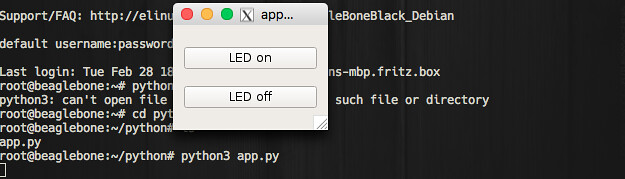
After a short time a new Window should have opened on our Mac (or any other client) showing the GUI. Clicking on the buttons should now let the LED switch on / off.